Thursday, April 22, 2010

How to hide files in JPEG pictures

If you’re looking to hide files on your PC hard drive, you may have read about ways to encrypt folders or change the attributes on a file so that they cannot be accessed by prying eyes. However, a lot of times hiding files or folders in that way requires that you install some sort of software on your computer, which could then be spotted by someone else.
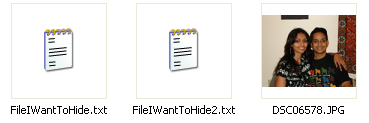
I’ve actually written quite a few articles on how you can hide files and folders in Windows XP and Vista before, but here I’m going to show you a new way to hide files that is very counter-intuitive and therefore pretty safe! Using a simple trick in Windows, you can actually hide a file inside of the JPG picture file!
You can actually hide any type of file inside of an image file, including txt, exe, mp3, avi, or whatever else. Not only that, you can actually store many files inside of single JPG file, not just one! This can come in very handy if you need to hide files and don’t want to bother with encryption and all that other technical stuff.
hide file in jpg

How to detect computer & email monitoring or spying software

As an IT Pro, I routinely monitor employee’s computers and emails. It’s essential in a work environment for administrative purposes as well as for security. Monitoring email, for example, allows you to block attachments that could contain a virus or spyware. The only time I have to connect to a user’s computer and do work on directly their computer is to fix a problem.
However, if you feel that you are being monitored when you shouldn’t be, there are a few little tricks you can use to determine if you’re right. First off, to monitor someone’s computer means that they someone can watch everything that you are doing on your computer in real time. Blocking porn sites, removing attachments or blocking spam before it gets to your Inbox, etc is not really monitoring, it’s more like filtering.

How to convert a PDF file to Word, Excel or JPG format

One common question I’ve run across a lot these days in the office is how to convert a PDF file to Microsoft Word format (doc), Excel format (xls), or JPG picture format. Usually, people want to know how to convert a file to PDF, but it’s also nice to be able to convert back the other way. Converting to Word is actually pretty simple and can be done directly using an online file conversion service called Zamzar. Going to Excel or JPG is a two step process, but nothing very difficult to follow.
Update: There’s a much easier way to convert a PDF to JPG image format than the method I have mentioned below. Here’s how you can do it using Zamzar.com.

Convert a PDF file to JPG – Easy Way

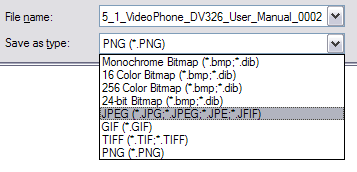
Go to ZamZar.com, browse for your file and choose PNG format for the format to conver to under Step 2. PNG is another newer picture format that is slowly replacing the JPG format. Most programs that can open JPG files can open PNG. Zamzar automatically converts each page in the PDF document into it’s own PNG picture file. Now you can simply open Microsoft Paint (yes, all you need it Paint!) and choose File – Save As from the menu and choose JPEG from the drop down list of formats.
microsoft paint
That’s it! By the way, if youare interested in how to extract the text from a PDF document or how to convert Word files to PDF, etc, check out the links.