Showing posts with label Security. Show all posts

Wednesday, April 15, 2009

Tag&Rename 3.2


-- 100% clean (No Viruses, No Adware, No Spyware)
with serail key and Crack
Tag&Rename is a handy management utility designed for mp3, wma, ogg, mp4 (m4a, m4p) and flac music files.

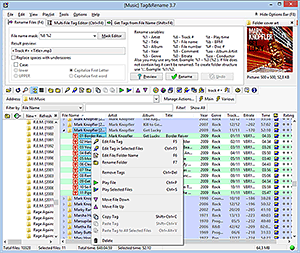
With Tag&Rename you can quickly and easily rename your music collection using the embedded tag data within music files, write new or edit existing tag information, create tags based on file names, get song information from the freedb server, or import it from the amazon.com. Tag&Rename supports all popular tag standards used by software and hardware players. This program is a very useful playlist editor with recursive sub folders support and a unique file list which show all your files in a real folders structure.

Tag&Rename is the only music organizer and tag editor which support all popular files formats:
.mp3 - ID3v1, ID3v1.1, ID3v2.2, ID3v2.3 and ID3v2.4 tags
.mpc (MusePack), .ape (Monkey's Audio), .ofr (Optim Frog) and .wv (Wav Pack) - APEv1 and APEv2 tags
.wma, .asf and .wmv (Windows Media) - Windows Media tags
Apple iTunes and iPod aac (.m4a and .m4p) and .mp4 files
Windows Media (.wma, .asf and .wmv files)
.ogg, .flac - vorbis comment tags

Tag&Rename have full support the following tag frames in all supported music formats: Artist, Album, Title, Year, Genre, Comment, Composer, Original Artist, Copyright, URL, Encoded by, Track #, Disc #, Rating, Mood, BPM, Cover art, Lyrics, Orchestra or band, Conductor, Lyricist, Original Lyricist, Label, Radio station name, Audio file information web page, Artist web page, Audio source web page, Radio station web page, Buy CD web page, ISRC #, Catalog #, (in ID3v2 tags Tag&Rename also support PCDJ software frames).

Key features:
Rename music files according it tag information: easily rename files using templates individually or whole directories at a time, preview changes before renaming or undo the last renaming process, rename the folder (including sub folders) containing your music files, and manually edit files and folders names.
Multi-file or manual tag editors: edit tags for multiple or single files, you can add cover art to all album files with a few clicks, fill-in tag fields using the file name.
Freedb support: gets tag information for full music albums automatically in seconds using the freedb Internet server.
Amazon.com support: search and import album information and cover art from the www.amazon.com server to files tags.
Text case conversion functions: convert case or capitalize the first letter of each word within file names or tags.
Tags synchronization wizard: you can synchronize ID3v1 and ID3v2 tag data .
Export wizard can export your music information into any format (csv, xml, html and tab delimited text).
Rename music files folder according to tags information.
Full support for files drag and drop like in Windows Explorer.
M3u play lists: create m3u play lists using the unique Quick Save Play list feature.
Play music files: listen to your music files using your favorite music player.
Explorer shell extensions: Tag&Rename can be added to the context menu of MS Explorer so that you can access T&R faster (right-click mouse) from the MS File Manager.
Tag&Rename is very easy to use and highly configurable. In addition, it has helpful notes and descriptions of menu commands built into the interface to help speed up your understanding and use of the program.

Tag&Rename supports many files and tags standards in an easy and intuitive way, so you can work with music metadata and not have to think about files codecs and tags versions - Tag&Rename does it all.

System requirements:
Pentium 200 MHz processor or better
Windows 95/98/Me/NT/2000/XP
16 MB RAM
2.5 MB hard drive space
Sound card

Click Here For Download With Crack (format rar file)

Magic File Renamer v6.12 Professional Edition

Magic File Renamer v6.12 Professional Edition With Crack


-- 100% clean (No Viruses, No Adware, No Spyware)

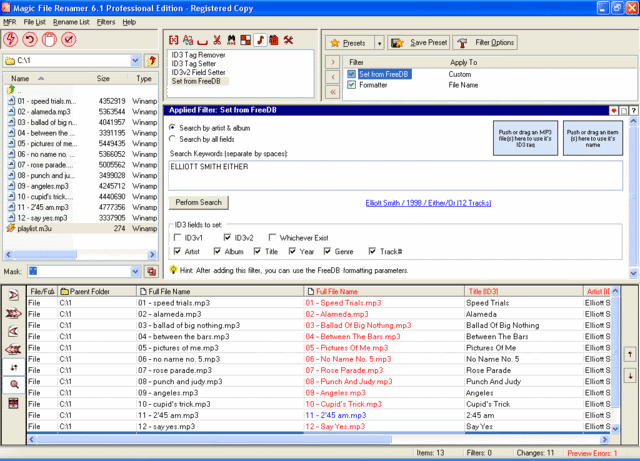
The most comprehensive and flexible file-renaming and ID3 tagging software for Windows.
Supplied with 36 filters which you can use to perform almost any renaming task you could think of.
Supports MP3 ID3 tags read/write, and online music albums information retrieval from freedb.org.
Supports reading information from image files, and metadata in various standards from JPEG images.
Supports changing text files contents by applying any text filter on them.
Supports real-time preview, log and undo for any changes made.
Supports presets and console mode for automatic batch renaming from command-line.

Click Here For Download in (Rar Format)


Flash Album Creator Version 1.7

Flash Album Creator Version 1.7

-- 100% clean (No Viruses, No Adware, No Spyware)

Flash Album Creator - Over View
Flash Album Creator is a powerful slide show builder. It enables you to transfer a group of pictures into your own slide show in a breeze. You can also add narration, background music, text, transition animation effects and pan/zoom animation effects as you wish. The output slide shows are in the format of Adobe Flash or EXE. You can distribute them onto web sites, send them by e-mails, or burn them into CDs to share with others. If you have no web development experience, Flash Album Creator can help you breeze through the creation of a slide show in just several minutes. What you should do is simply to add pictures and select slide properties. If you are an experienced web designer, Flash Album Creator can also be a good choice to help you make slide shows for clients to save time and effort.


Key Features Easy to Use You can make a Flash slide show in several minutes just by adding photos and setting slideshow properties. No Flash programming required at all! Full Customizable You can fully customize the properties of individual slides as well as the whole web slideshow. These properties include: different narration, text, transition animation effect, pan/zoom animation effect for each slide, and the size, background color, link address and background music, etc., for the whole slide show.


Rising PC Doctor v.6.0.0.9

Rising PC Doctor v.6.0.0.9
Rising PC Doctor, Spyware and Trojan Removal, Online Security Protection Expert
With its seven key functions of automatic malware analysis, immunization of USB storage devices, ability to repair Microsoft Internet Explorer & Windows, Trojan Behavior Detector & Blocker, protection against malicious websites, Internet Explorer protection and Trojan Download blocker, Rising PC Doctor will greatly enhance your computer security protection against malware and cyberthreats.

Key Features

1, Trojan Behavior Detector & Blocker
Rising PC Doctor can Detect the majority of Trojans and even great number of other malware upon startup before they can execute their malicious function. It will significantly increase your protection from cyber threats.

2, Trojan Download Blocker
After successful Infection, many viruses automatically start to download large numbers of Trojans and other malware. The Trojan blocking technology of Rising PC Doctor ensures that even an infected computer will not download any other viruses and stop the spreading of whole families of Trojans.

3, Automatic Malware Analysis
Rising PC Doctor can automatically scan for potentially unknown malware. With the permission of users, suspicious malware will be automatically transferred to Rising�s Automated Malware Analyzer for detailed analysis. The user will be informed about the result of the analysis and can quickly react to the new threats for which conventional protection is not yet available. Analysis metadata collected by the community of Rising users (Rising Cloud Security) will be stored in the Rising Security Database, providing up-to-date information about cyber security.

Main Functions


1. Completely Redesigned Vulnerability Scan
2. Strong Ability to Repair Microsoft Internet Explorer & Windows
3. Powerful Process and Startup Management
4. Advanced Tools for Experienced Users
Other Functions
1. Spyware Scan & Removal
2. Strong Protection against Current Trojans
3. Privacy Protection


Click Download

RegFreeze v.5.6.1

RegFreeze v.5.6.1

RegFreeze is an effective tool to counteract spyware modules trying to install themselves onto your computer. With RegFreeze, you can feel safe and secure while surfing the Internet.

Does your browser suddenly change the start page?
Does your browser's search page sometimes lead to unwanted locations?
Does something weird happen to your browser after visiting an ordinary web site?
Start using RegFreeze today and solve all these problems once and for all!
Most spyware changes your browser's start page or search page. RegFreeze is intended to prevent the destructive consequences of spyware. RegFreeze's primary objective is to prevent any important preferences (such as your browser's start page etc.) from being changed without your knowledge.

RegFreeze detects changes in a timely manner and notifies you about them (or, if an automatic mode is enabled, processes changes automatically).

RegFreeze Spyware scanner will clean your system quickly and effectively! Use RegFreeze and you will forget about spyware forever!

Click Download

Tuesday, April 14, 2009

Security solutions respond to demand

BOSTON – The cyber threats to healthcare IT organizations may be too numerous to count, but this particular black cloud does have a silver lining – it's forcing IT security vendors to specialize in better-defined areas and to abandon impossible claims of providing blanket security.

If this fall's 10th annual HealthSEC show in Boston were any indication, the security category has effectively been subdivided into privacy compliance, network management and defense, intrusion detection and prevention, and identity management. With such specialization, it's hoped, will come greater effectiveness.

"There's a misconception out there that people are secure if they have a firewall," said Michele Taylor, healthcare solutions manager for SonicWALL. "People don't understand all the risks they face today."

SonicWALL was just one of several dozen IT security vendors at the HealthSEC show. Taylor and other vendor representatives at the event say that thanks to the impending April 2005 deadline of the HIPAA Security Rule, some high-profile attacks on healthcare organization data and the sheer number and ferocity of cyber attacks in general, healthcare CIOs have made protecting IT a strategic priority.

Taylor's own message to healthcare providers is simple: Battening down the servers is no longer enough, which is why SonicWALL recommends firewalls for client devices as well. The rise of wireless networks, the growth in digital technologies like PACS and an increase in rogue devices that can access data have all blurred the definition of what the network is.
Robert Markovich of Network Chemistry agrees with Taylor about the threats and the inadequacy of the typical response. His company specializes in intrusion prevention and wireless network integrity, and he's been surprised by the lack of awareness about the threats that exist today.

"Security is no longer a one-size-fits-all solution," Markovich observes. "People thought that if they encrypt and they authenticate, they're protected. Right?"

Wrong. Markovich argues that if IT organizations fail to vigilantly seek out intruders – whether they're at a desktop continents away or sitting in the parking lot accessing a wireless network – they will remain vulnerable to determined hacks looking for financial data or system resources.

"Corporations spend a lot of money to put up firewalls and identify intruders," adds Nicklaus R. Schleicher of Consul, which specializes in security audits and compliance solutions. "But the goal now is to open up networks (to valid users and business partners) while closing down unauthorized access."


In Schleicher's view, a strong defense isn't enough if it doesn't include reporting tools. Even the best security system needs auditing and the ability to test results against policies.

"These are the things HIPAA requires," he says, "and the things you need to be concerned about."

Remove Run From the Start Menu

Remove Run From the Start Menu

Powerful tools such as the Registry Editor, the System Configuration Utility and others are extremely useful in experienced hands. However, misusing such tools could potentially wreak havoc with your computer system and cause you no end of problems.

The Windows "Run" command offers rapid access to these tools. By default, the run command is easily accessible via the Windows Start Menu. The run tool generally retains a list of previously used commands, which means that a user could potentially open an advanced tool such as the Registry Editor just by clicking the "OK" button. Youngsters often have a propensity to fearlessly "explore" their computing environment, and generally speaking, this is healthy. However, having your five-year-old inadvertently open and "play with" something like the System Configuration Utility while your back is turned is less than desirable (grin).

Therefore, if you share your computer with children or inexperienced users you may want to remove the run command from the Start Menu all together.

Here's how:

1. Right-click the "Start" button and then click "Properties" to open the "Taskbar and Start Menu Properties" window.

2. Click "Customize" to open the "Customize Start Menu" window.

3. Click the "Advanced" tab.

4. In the "Start menu items" list, uncheck the "Run command" box. You will probably need to scroll down the list to find the item.

5. Click "OK" to exit the "Customize Start Menu" window and then "OK" again to exit the "Taskbar and Start Menu Properties" window.


The Run command should no longer be visible on the Window Start Menu. To get the Run command back, follow the procedure outlined above and re-check the box in Step 4.

Note that you can still access Run via the keyboard by pressing the Windows Key + R even if it does not show on the Start Menu.

Activate a Screen Saver Instantly

Activate a Screen Saver Instantly.

If you want to keep casual observers from seeing what you are working on when you step away from your computer, or you just want to enjoy your favourite screen savers without the wait, you can create a screen saver shortcut that allows you to activate a screen saver instantly.

Here's how to create a screensaver shortcut.

Part 1: Locate Screen Saver Files

1. Click "Start" and then click "Search" to open the "Search" window.

2. In the "Search Companion" area, click "All Files and folders".

3. Click the "More advanced options" arrow.

4. Ensure that there are ticks in the "Search system folders" and the "Search sub-folders" check boxes.

5. In the field labelled "All or part of the file name:" enter *.scr

6. In the drop-down list labelled "Look in:", choose the drive where system folders are likely to be stored (probably the "C" drive"). Your search should look like the screenshot shown below.

7. Click the "Search button" to begin searching for screensaver files.

8. When the search is completed, a list of available screen saver files should be displayed in the search window.

Part 2: Create a screensaver shortcut

1. Choose the screen saver you wish to use. You can double-click on a file to view a preview of the screen saver.

2. Right-click the chosen file and select "Send To" in the context menu.

3. In the "Send To" sub-menu, click "Desktop (create shortcut).

A shortcut icon for your chosen screen saver should now be displayed on the Windows XP desktop. Double-click on this icon any time you wish to activate your screensaver.

If you like, you can even create several screen saver shortcuts on the desktop so that you have a range of instant screen savers to choose from.


Notes:
You may be able to locate suitable screen saver files more quickly by using advanced search options or navigating directly to the files within Windows Explorer.

Activating an instant screen saver via a desktop shortcut will not change the default screen saver you have set in Display Properties. If you have not activated an instant screen saver via a shortcut, the default screen saver will still activate automatically after the amount of idle time specified in Display Properties.

Instant screen savers will not request a password on resume even if you have your normal screen saver configured to require a password in Display Properties.

Disable the Error Reporting

How to Disable the Error Reporting Feature in Windows XP

When an application crashes in Windows XP, you may receive a request to send an error report to Microsoft. These requests can become a little annoying. Also, error reports can sometimes include part of a document you were working on when the program crashed and you may feel that sending them compromises your privacy somewhat.

Mind you, sending error reports may actually help Microsoft to produce more stable software in the future. The decision to send error reports is up to the individual. You can decide to send reports on a case-by-case basis, or you can choose to disable the error reporting function completely.

To disable Error reporting:

1. Right-click the My Computer icon on the desktop or in the Start menu and select "Properties" to open the System Properties window.

2. Clicked the "Advanced" tab.
3. Click on the button labelled "Error Reporting" which is located at the bottom right of the System Properties window. The "Error Reporting" window should appear.

4. Select the item labelled "Disable error reporting". It is advisable to leave a tick in the check box that says "But notify me when critical errors occur".

5. Click "OK" to exit the "Error Reporting" window and then click "OK" again to exit System Properties.

You should not be asked to send error reports to Microsoft again, but you will still receive error messages that might help with troubleshooting.

To enable error reporting again at a later date, navigate to the "Error Reporting" window as described above and select "Enable error reporting".

Instantly Lock Your Computer

Instantly Lock Your Computer

Windows XP allows you to instantly "lock" your computer so that a password is required before the computer can be accessed. This simple security feature can keep others from viewing or using your files or programs while you are away from your computer.

To lock your computer, simply press the Windows Key + L. (On a standard computer keyboard, the Windows Keys can be found two keys to the left and right of the space bar, and can be identified by their "Flying Windows" logos.) Any files or programs you have open will be hidden and you will need to enter your User Account password in order to resume your computing session.

Of course, this security measure will only be effective if you have the computer configured to require a password when you logon. If you do not use a password to logon, then anybody will be able to "unlock" the computer. (Passwords can be set by accessing "User Accounts" via the Windows XP Control Panel).

Exactly how the lock function behaves depends on how logon and logoff options are set on your computer.

If "Fast User Switching" is enabled, pressing Windows Key + L will display the "Welcome" screen and other users of your computer will be able to logon to their own accounts.

If "Fast User Switching" is disabled, pressing Windows Key + L will obscure open files with the current desktop wallpaper and display a password dialogue box.

Fast User Switching can be enabled and disabled by accessing the User Accounts feature.

Sunday, April 12, 2009

5 ways to speed up your PC

By following a few simple guidelines, you can maintain your computer and keep it running smoothly. This article discusses how to use the tools available in Windows to more efficiently maintain your computer and safeguard your privacy when you’re online. Free up disk space
By freeing disk space, you can improve the performance of your computer. The Disk Cleanup tool helps you free up space on your hard disk. The utility identifies files that you can safely delete, and then enables you to choose whether you want to delete some or all of the identified files.

Use Disk Cleanup to:• Remove temporary Internet files.
• Remove downloaded program files (such as Microsoft ActiveX controls and Java applets). • Empty the Recycle Bin. • Remove Windows temporary files. • Remove optional Windows components that you don’t use. • Remove installed programs that you no longer use.


Tip: Typically, temporary Internet files take the most amount of space because the browser caches each page you visit for faster access later.

To use Disk Cleanup
1. Click Start, point to All Programs, point to Accessories, point to System Tools, and then click Disk Cleanup. If several drives are available, you might be prompted to specify which drive you want to clean.


2. In the Disk Cleanup for dialog box, scroll through the content of the Files to delete list.


Choose the files that you want to delete.

3. Clear the check boxes for files that you don’t want to delete, and then click OK.

4. When prompted to confirm that you want to delete the specified files, click Yes.


After a few minutes, the process completes and the Disk Cleanup dialog box closes, leaving your computer cleaner and performing better.


Speed up access to data Disk fragmentation slows the overall performance of your system. When files are fragmented, the computer must search the hard disk when the file is opened to piece it back together. The response time can be significantly longer.

Disk Defragmenter is a Windows utility that consolidates fragmented files and folders on your computer’s hard disk so that each occupies a single space on the disk. With your files stored neatly end-to-end, without fragmentation, reading and writing to the disk speeds up.

When to run Disk Defragmenter
In addition to running Disk Defragmenter at regular intervals monthly is optimal there are other times you should run it too, such as when:
• You add a large number of files.

• Your free disk space totals 15 percent or less. • You install new programs or a new version of Windows.
To use Disk Defragmenter:
1. Click Start, point to All Programs, point to Accessories, point to System Tools, and then click Disk Defragmenter.


Click Analyze to start the Disk Defragmenter.
2. In the Disk Defragmenter dialog box, click the drives that you want to defragment, and then click the Analyze button. After the disk is analyzed, a dialog box appears, letting you know whether you should defragment the analyzed drives.

Tip: You should analyze a volume before defragmenting it to get an estimate of how long the defragmentation process will take.
3. To defragment the selected drive or drives, click the Defragment button. Note: In Windows Vista, there is no graphical user interface to demonstrate the progress—but your hard drive is still being defragmented.

After the defragmentation is complete, Disk Defragmenter displays the results.
4. To display detailed information about the defragmented disk or partition, click View Report.
5. To close the View Report dialog box, click Close.
6. To close the Disk Defragmenter utility, click the Close button on the title bar of the window.


For more information on disk defragmentation, Link
Detect and repair disk errors

In addition to running Disk Cleanup and Disk Defragmenter to optimize the performance of your computer, you can check the integrity of the files stored on your hard disk by running the Error Checking utility.

As you use your hard drive, it can develop bad sectors. Bad sectors slow down hard disk performance and sometimes make data writing (such as file saving) difficult, or even impossible. The Error Checking utility scans the hard drive for bad sectors, and scans for file system errors to see whether certain files or folders are misplaced.

If you use your computer daily, you should run this utility once a week to help prevent data loss.

To run the Error Checking utility:1. Close all open files.
2. Click Start, and then click My Computer.
3. In the My Computer window, right-click the hard disk you want to search for bad sectors, and then click Properties.
4. In the Properties dialog box, click the Tools tab.
5. Click the Check Now button.
6. In the Check Disk dialog box, select the Scan for and attempt recovery of bad sectors check box, and then click Start.


7. If bad sectors are found, choose to fix them.


Tip: Only select the “Automatically fix file system errors” check box if you think that your disk contains bad sectors.
Protect your computer against virus and spyware

A computer virus is a computer program that can copy itself and infect a computer without the permission or knowledge of the owner. The term “virus” is also commonly but erroneously used to refer to other types of malware, adware and spyware programs that do not have the reproductive ability. A true virus can only spread from one computer to another (in some form of executable code) when its host is taken to the target computer.

Spyware collects personal information without letting you know and without asking for permission. From the Web sites you visit to usernames and passwords, spyware can put you and your confidential information at risk. In addition to privacy concerns, spyware can hamper your computer’s performance.

To combat spyware, you might want to consider my personal recommendation ESET NOD32 Internet Security. Alternatively, there are other free antivirus and anti-spyware software programs available.
Learn all about Tweaking

Download TuneUP Utilities to do all the above all in one place with a lot of other tweaking like Registry cleaning, registry defragmenting and alot more. You can also use CCleaner or TweakUI as a free alternative.