Showing posts with label windows xp. Show all posts

Tuesday, January 10, 2012

Download PTCL V-Wireless driver

Download PTCL V-Wireless driver
Hello Friends Download PTCL V-Wireless driver Installing Huawei Modem Driver of PTCL V Wireless on Wi
Installing Huawei modem Driver of PTCL V Wireless on windows 7
In this article you will find how to install huawei modem (ETS2558) drivers of previous version windows (XP) on windows 7.
 Other user (other modem brand) of PTCL V or windows XP service pack 3 and vista user may get help from there to install their drivers.
 As we know that win 7 has great support for previous windows applications so software make no problem only driver create a problem.

 To install the driver follow these steps.
 1- Insert CD into CD/ DVD ROM.
 2- Cancel auto run of huawei application.

 3- Go to start Menu in search bar type "Troubleshooting" and open it from menu.

 4- Now click on programs and follow the instruction (Run application in Win XP service pack 2 compatibility mode and follow procedure same as XP).

 Select not listed….

 Select Location of application….

 Click on "Try recommended settings"

 Now click on start the Program…

 5-After installizations save compatibility settings. (Windows may warn u that it is not compatible just ignore it).
 6-Now go to the Device manager here you will see TUSB3410 DEVICE IN Multiport serial adapters which will be marked with some sign Right click on it and then click on update driver. Now click on brows files from computer and select CD/ DVD ROM in which driver is found. It will scan the CD/ DVD ROM n find and install drivers automatically.


 7-Refresh the list of device manager or re-open it. U will see that USB-Serial Port (COM 3) in Ports (COM & LPT) will be marked with sign. Now perform same procedure as in step 6 with it.

 Now you are ready to use your application.
 Now open application ptcl v and click on connect it may take 1 to 2 minutes by displaying a message initializing.

Ptcl Authentication #777
Use name vwireless@ptcl.com
Password    ptcl


Download Drivers Click here

Tuesday, September 28, 2010

Windows Music Ringtone

Windows Music Ring-tone

Windows Music mix

Size: 452kb

Download


Please give the rating and comment .. thank you for rating

Thursday, April 22, 2010

How to create a secured and locked folder in Windows XP

UPDATE: Since some people were having issues with this method of hiding a folder in XP (folder being renamed incorrectly, visible via the command prompt, etc), I am adding to the bottom another way to permanently hide a folder using a program called Free Hide Folder. Please scroll down to read about it.
If you’ve come across this page looking for a way to create a password protected, secure, hidden or locked folder in Windows XP for free, you’ve come to the right place. Unfortunately, Windows XP does not have any user-friendly built-in tools to create secure folders on computers with multiple users. Of course, you can encrypt data on your hard disk, but this only helps if your computer is stolen.
In a previous post, I wrote about how you can hide a folder in Windows XP using a rudimentary built-in feature. This method is useful if you want to hide a folder or file and you’re pretty sure that anyone who is using the computer will have no idea how to un-hide the data. If you’re dealing with someone a little more computer savvy, there is another way to create a secure locked folder without having to buy any 3rd party software.
It basically involves using a script to morph the folder into something completely different so that it’s still visible, but nothing inside the folder is accessible. In order to view the data, you have to run another script to morph it back. Anyone who clicks on the folder will be brought to the Control Panel and simply think it is a shortcut.
Here are the steps to create the protected folder in Windows XP:
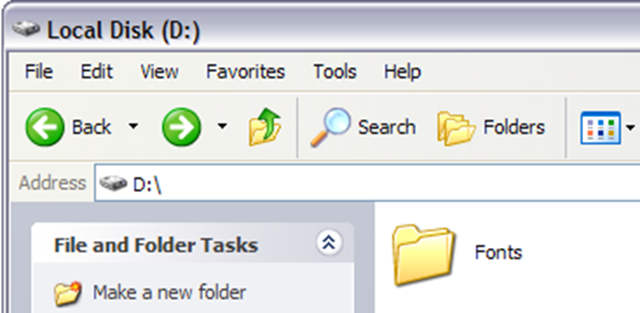
  • First create a folder that you will use to store your confidential data. For example, I have created a folder called Fonts at the root of my D drive. Since the hidden folder will bring you to the Control Panel, it’s best to name the folder as one of the programs inside there.
createsecurefolder1